How to Convert 3MF to STL
Quick Summary
- Page type
- Scenario tutorial for converting 3MF files into STL geometry.
- Best use
- Use this workflow when a slicer, printer, marketplace, or CAD handoff expects STL but your source file is 3MF.
- Key decision
- Export one merged STL for a single print mesh, or export separate STL files in a ZIP when each part should remain independent.
- Important limitation
- STL preserves mesh geometry, but it does not preserve 3MF colors, materials, textures, thumbnails, build-plate data, or rich metadata.
Converting a 3MF file to STL is useful when the downstream workflow accepts STL more reliably than 3MF. The safest workflow is to preview the model first, confirm scale and part structure, then export STL only after deciding whether the model should become one combined mesh or separate STL parts.
Step-by-Step Conversion
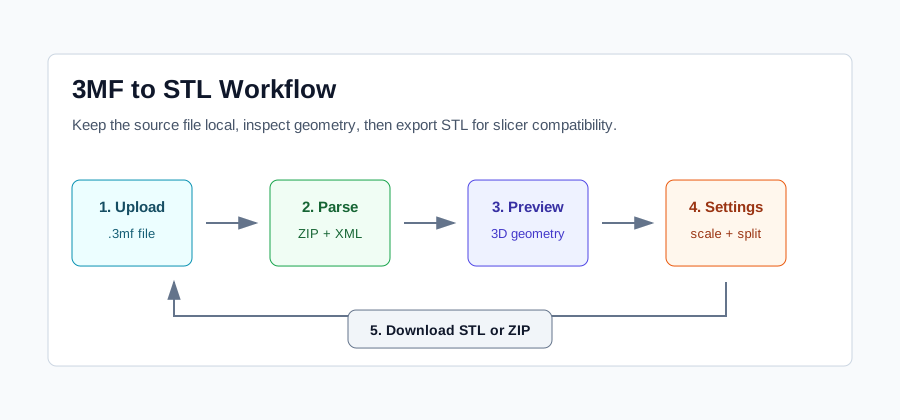
- Open the 3MF to STL converter and upload your
.3mffile. The file is read locally in your browser, so the model does not need to be sent to a conversion server. - Wait for the parser to read the 3MF package. A 3MF file is a container, so the converter looks for the model XML, mesh vertices, triangle indices, and any referenced model parts.
- Inspect the live 3D preview before export. Use the preview to catch obvious orientation, scale, missing-part, or multi-object issues before downloading STL.
- Choose export settings. Use the scale factor or maximum dimension control when the model must fit a target print volume. Use centering and drop-to-floor when you want the STL positioned for slicing.
- Decide between merged and split output. Merged output downloads one STL file. Split output downloads a ZIP with separate STL files for the detected parts.
- Download the STL output and verify it in your slicer. STL is geometry-only, so check units, wall thickness, support needs, and printability before starting a long print.
Merge or Split STL Output
Use merged STL output when the 3MF represents a single object that should print as one mesh. This is also useful when the target platform accepts only one STL upload or when keeping part boundaries is not important.
Use split ZIP output when the 3MF contains multiple objects that should stay separately selectable in the slicer. Split output is better for assemblies, optional parts, color-separated printing workflows, and models where each object needs its own orientation or print settings.
What Changes During Export
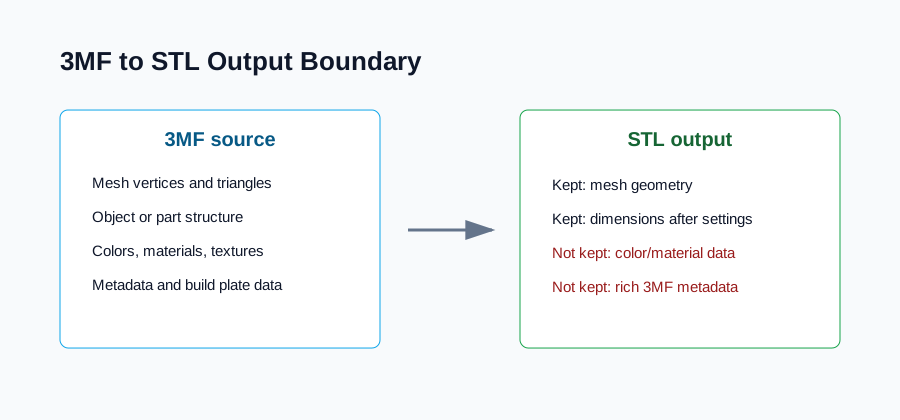
The converter exports mesh geometry into STL. Vertices, triangle faces, dimensions after your selected settings, and the basic shape are the important data that survive the export. Rich 3MF data does not carry into STL.
If the source 3MF depends on colors, materials, textures, thumbnails, printer profiles, slicer settings, or build-plate placement, keep the original 3MF as the master file. Use STL as a compatibility copy for tools that only need the mesh.
Pre-Export Checks
- Check model dimensions before downloading. If the bounding box is far larger or smaller than expected, set a maximum dimension or scale factor before export.
- Check whether the model has multiple objects. If each object needs independent placement, choose split output.
- Check color and material expectations. If those details matter, STL is not the right final archive.
- Check the model in a slicer after export. This converter does not repair non-manifold geometry, rebuild broken meshes, or guarantee printability.
When Not to Convert
Do not convert 3MF to STL when the receiving workflow can read 3MF and you need to preserve the full project structure. 3MF is usually better for carrying print-oriented project details. STL is better when the next tool needs broad geometry compatibility and does not need rich print metadata.
If a 3MF file is corrupted, fails to parse, or contains broken geometry, repair it in CAD, mesh repair software, or a slicer first. Conversion can move readable geometry into STL, but it cannot make a damaged mesh printable by itself.
FAQ
Is converting 3MF to STL the same as changing the file extension?
No. A 3MF file is a packaged model container, while STL is a mesh geometry format. Proper conversion reads the 3MF model data and writes a new STL mesh.
Should I export one STL or separate STL files?
Export one STL when the model should behave as a single print object. Export separate STL files when the 3MF contains parts that need independent placement, orientation, material assignment, or slicer settings.
Will the STL keep colors or materials from 3MF?
No. STL does not store the rich color, material, texture, or metadata data that 3MF can contain. Keep the original 3MF if those details matter.
What should I do after downloading STL?
Open the STL in your slicer and verify dimensions, orientation, manifold status, support needs, and estimated print time. Treat the converted STL as a compatibility copy, not as a replacement for the source 3MF.