3MF to STL Converter
Transform 3MF to STL with real-time 3D preview. Fine-tune scale, position, and export settings before downloading.
Drag and drop 3MF file here
or click to browse from your computer
Loading 3D preview...
How to Convert 3MF to STL
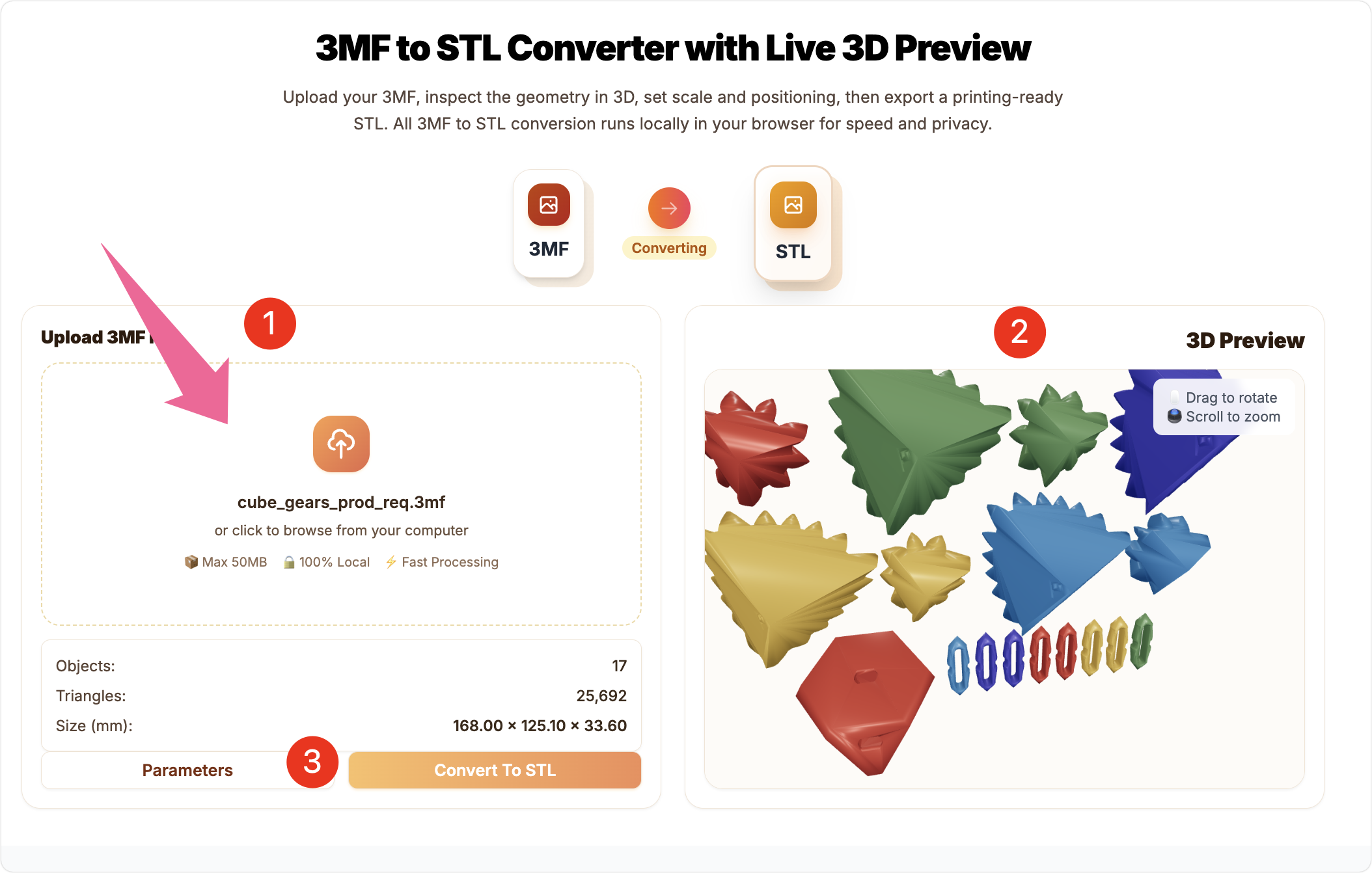
3 steps to finish 3MF to STL: upload, preview, download. Everything runs locally with a Parameters modal for print-ready STL output.
Professional 3MF to STL Conversion
Advanced features for precise 3D model conversion
Accurate 3MF to STL Geometry
Parses the 3MF scene graph and external model files to keep vertices and indices precise when exporting to STL. Default centering, drop-to-floor, and scaling controls make the STL slicer-ready.
Geometry is preserved; colors/materials are not in STL, matching the Tip that STL carries mesh only. Great for multi-part assemblies that must stay accurate.
Local & Private Processing
Every 3MF to STL step runs locally in your browser—uploads are never sent to any server, protecting IP-sensitive models.
Live 3D preview lets you verify details instantly, following the Tip to keep processing local for privacy and speed.
Print-Ready Controls
Use the Parameters modal to set scale, max dimension, merge or separate export, centering, and drop-to-floor so the STL fits your printer volume.
Tip-aligned guidance: check model scale before slicing, and choose merge vs. separate (ZIP) exports depending on your print workflow.
Why Choose Our 3MF to STL Converter
The best way to convert 3MF files to STL format with professional features
100% Free
Convert unlimited 3MF files to STL without any cost or registration required
Local Processing
All conversion happens in your browser - your files never leave your device
Live 3D Preview
See exactly how your model looks before conversion with interactive 3D preview
Professional Controls
Fine-tune scale, positioning, and export options for perfect print-ready STL files
Fast & Reliable
Efficient parsing and conversion with support for complex multi-part 3MF files
No Installation
Works directly in your browser - no software installation required
3MF to STL Converter FAQ
Key answers about color loss, scaling, split exports, and privacy during 3MF to STL conversion.